
Watch it once. Keep every word.
Transcription saves a YouTube video's captions into a searchable library in Chrome with one click. When you want more, it hands the transcript to ChatGPT or Claude for summaries, notes or slides, using the AI account you already have.
- Chrome
Free on the Chrome Web Store · Desktop Chrome 111 or later
Why it exists
The useful part of a video is hard to find again
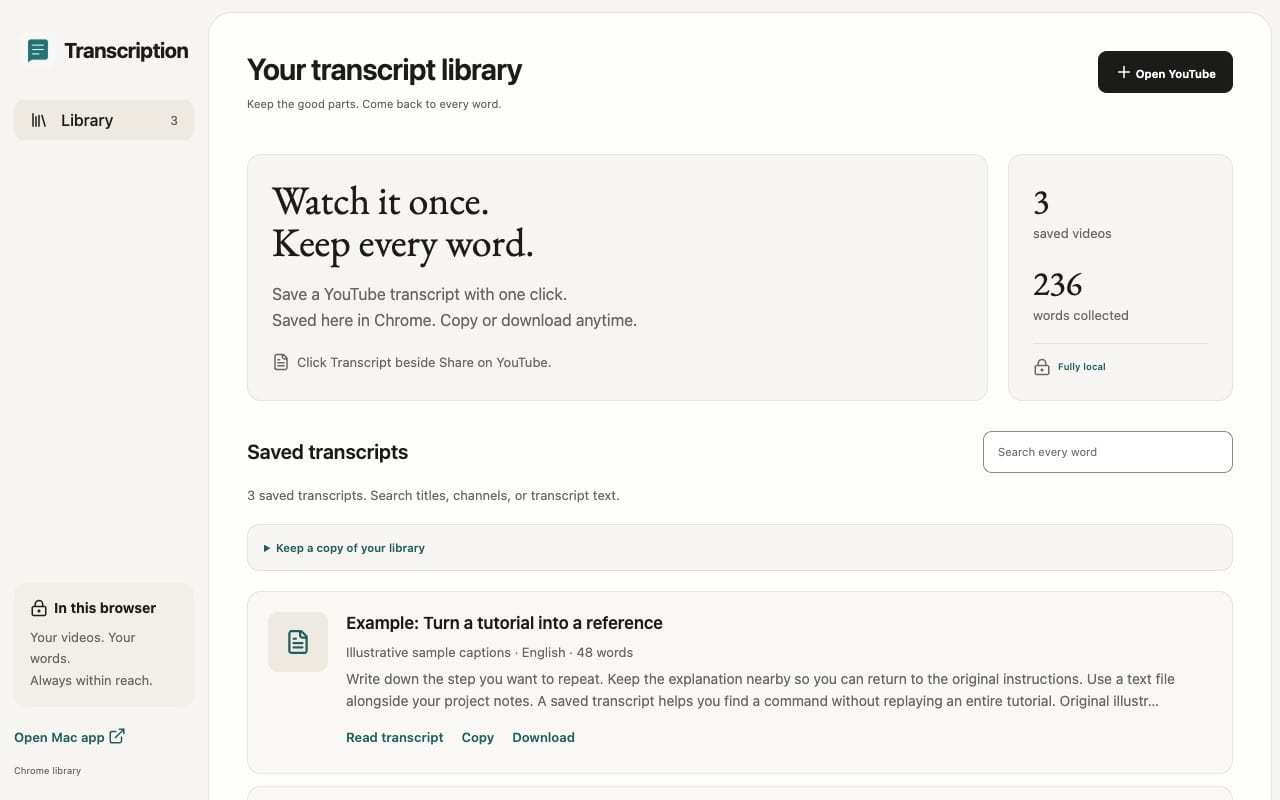
You watch a 40-minute tutorial, and a week later you need the one command it explained. Scrubbing back through the video takes longer than the original idea deserved. Transcription keeps the words, so you can search them, copy them, or ask an AI to turn them into notes.
Features
What Transcription does
One-click capture
Click Transcript beside YouTube's Share and Save buttons to save the video's available captions, including automatic captions.
Searchable local library
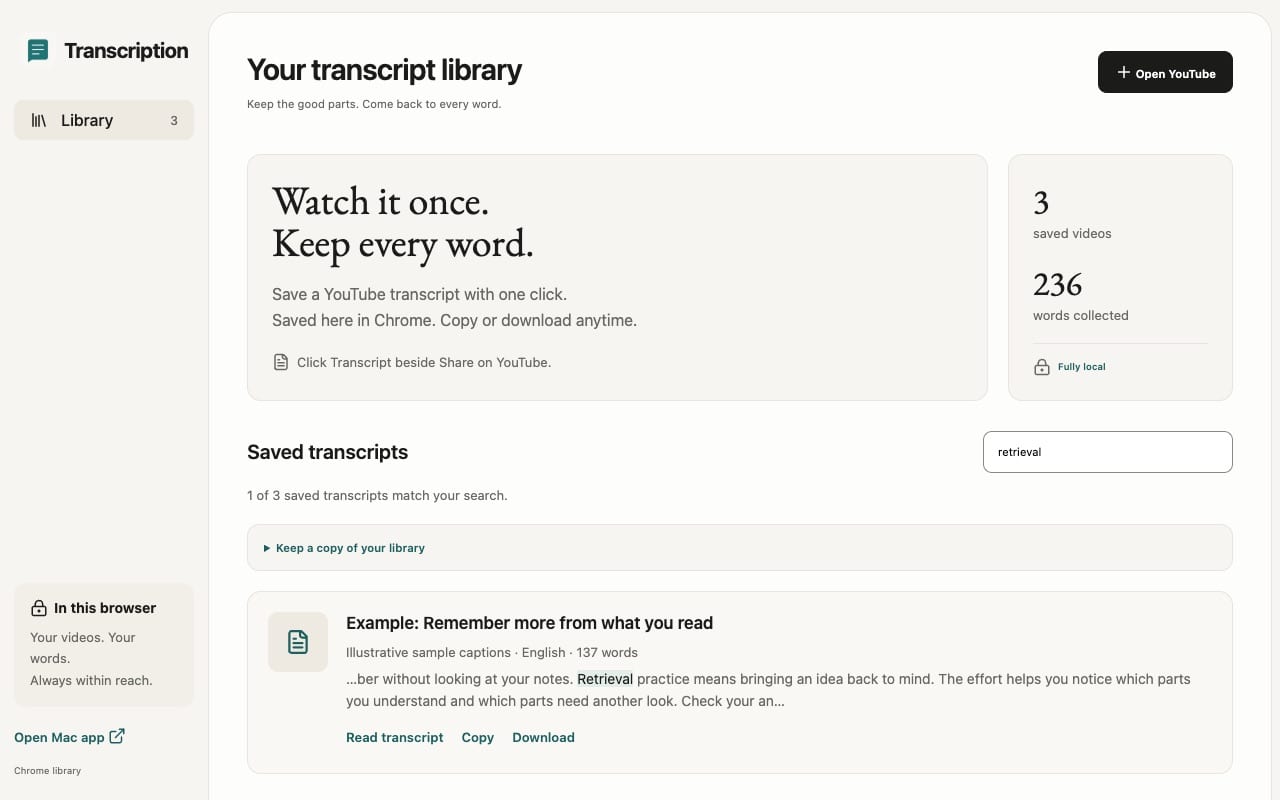
Search saved titles, channels and transcript text in a library page that lives in Chrome's local storage.
Timestamp links
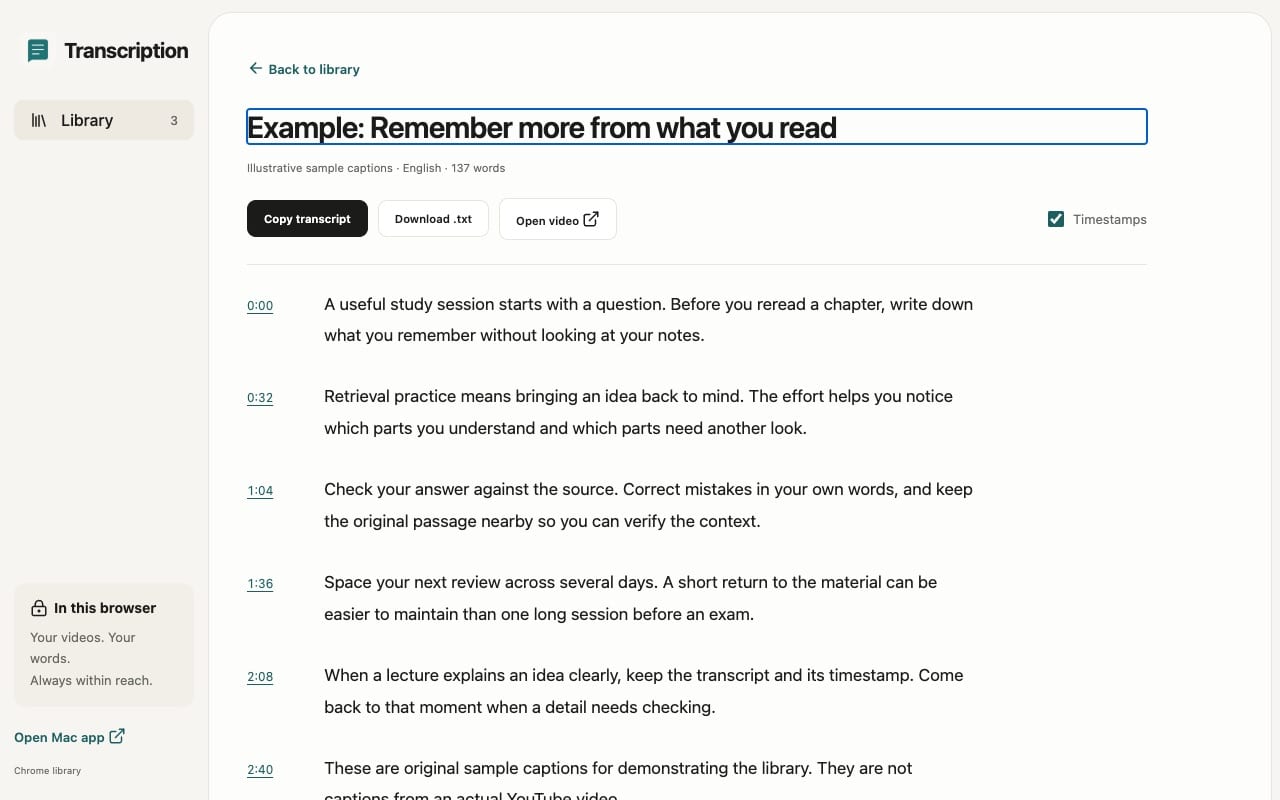
Read a transcript with timestamps that jump back to that moment in the YouTube video.
Copy or download text
Copy plain text or download a .txt file, with or without timestamps. Automatic copying and downloading on save can each be turned off.
Summaries with your AI
After saving, pick a task such as Quick Summary, Key Insights & Takeaways, Deep Learning & Study Notes or a custom request, then continue in ChatGPT or Claude.
Optional automatic send
Opt in per assistant and Transcription fills and sends the prompt for you. Without it, the prompt is copied and you paste and send yourself.
Export your library
Export Chrome library data and preferences as a JSON file whenever you want a separate copy.
Interface in 10 languages
The extension follows Chrome's interface language in English, Spanish, Hindi, Portuguese, French, German, Japanese, Korean, Simplified Chinese and Arabic. It does not translate transcripts.
How it works
From watching to keeping
Click Transcript
Open a captioned video on desktop YouTube and click Transcript beside the video actions.
Choose a task, or skip
Pick an AI task and ChatGPT or Claude, then continue. Or skip and keep just the saved transcript.
Find it later
Open the extension popup and choose Open Chrome library to search, read, copy or download saved videos.
Why Transcription
Built differently
Your AI, no new subscription
Many YouTube summarizers run their own AI and cap free summaries. Transcription hands the transcript to ChatGPT or Claude, so you use the account and limits you already have, with no API key.
A library, not a one-off summary
Summaries are useful once. Transcription keeps the original words in a searchable library you can return to, quote and download.
No developer server
Saved transcripts stay in Chrome's local storage. There is no Transcription account, analytics or developer cloud, and content goes to an AI provider only when you continue with a task.
Is Transcription free?
Yes. The extension is free, with no Transcription subscription or API key. AI tasks use your own ChatGPT or Claude account, including its available free access; that provider's limits and file features apply.
What do I need?
Desktop Chrome 111 or later and a YouTube video with captions available to your browser session. The extension does not transcribe audio, generate missing captions or bypass restrictions.
Can I save transcripts in other languages?
Yes, when YouTube provides those captions. To choose a specific language, open YouTube's Show transcript panel and select it before clicking Transcript. Only one current transcript is kept per video.
Where is my data stored?
In Chrome's local extension storage on your computer. Transcripts are not sent to the developer. If you continue with an AI task, the prompt, video details and transcript go to the assistant you chose, under its policy.
Can I back up my library?
Yes. In the Chrome library, open Keep a copy of your library and choose Export library data (JSON). There is no import or restore option yet, and uninstalling the extension removes its Chrome data.
Is there a Mac app?
A Mac companion called Transcript Vault, with notes, stars and a recoverable Trash, is in development. It is not a public download, and the Chrome extension works fully without it.
Get Transcription
Save YouTube transcripts in Chrome and turn videos into summaries with your own AI.
More from Parth
 Mac Video Fullscreen