
Catch the thought. Keep your flow.
Press ⌘\ from any app, write the idea down, and press Escape to get back to work. Notes, voice recordings, and images stay on your device, with no account.
- Mac
- iPhone
Mac and iPhone versions in App Review · macOS 14 or later · iPhone with iOS 17 or later
Why it exists
Good ideas arrive at bad times
A thought shows up halfway through a meeting or while you are reading something else. Opening a full notes app and finding the right page takes long enough that you lose your place, or you skip it and lose the thought. Catch keeps a notebook one keystroke away, then gets out of the way.
Features
What Catch does
Capture from anywhere
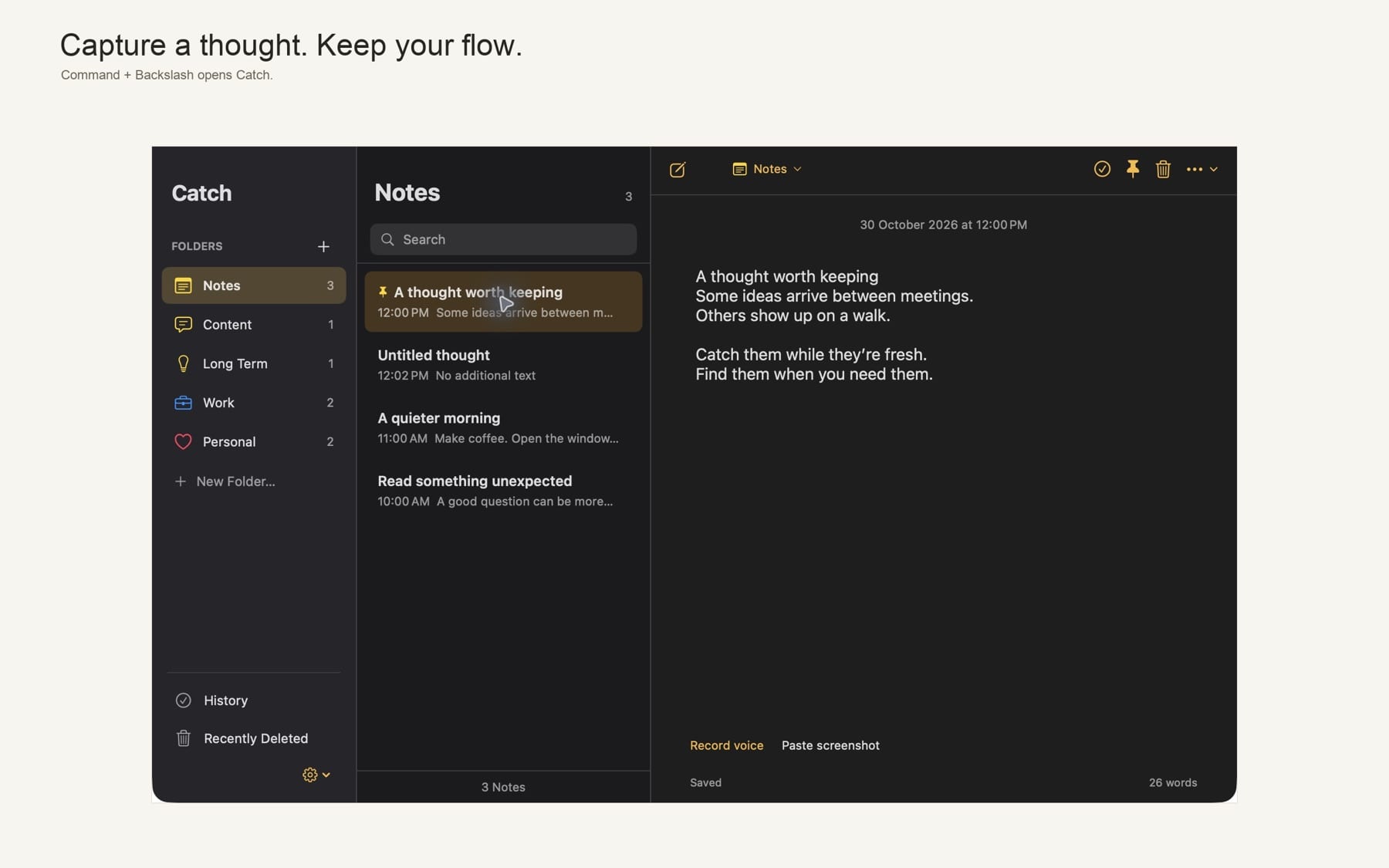
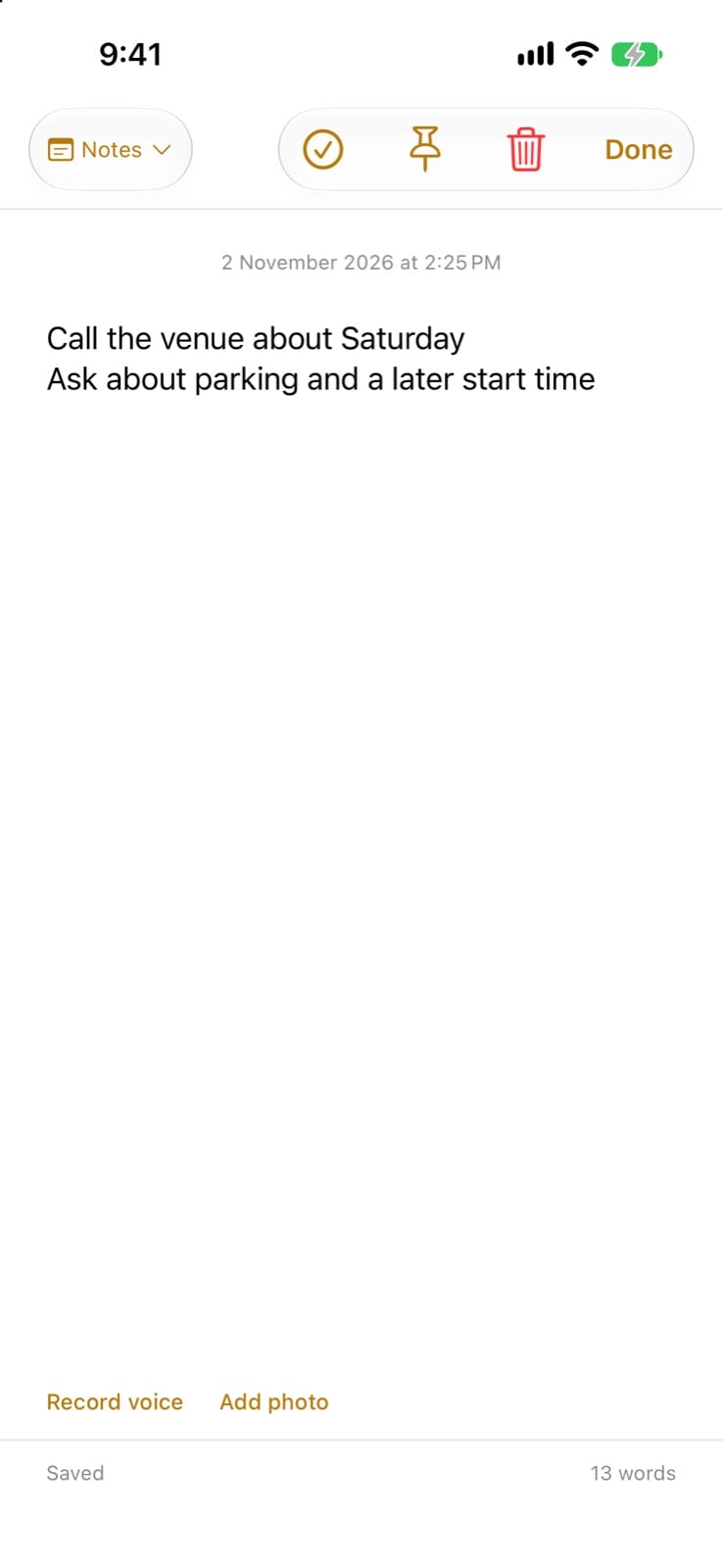
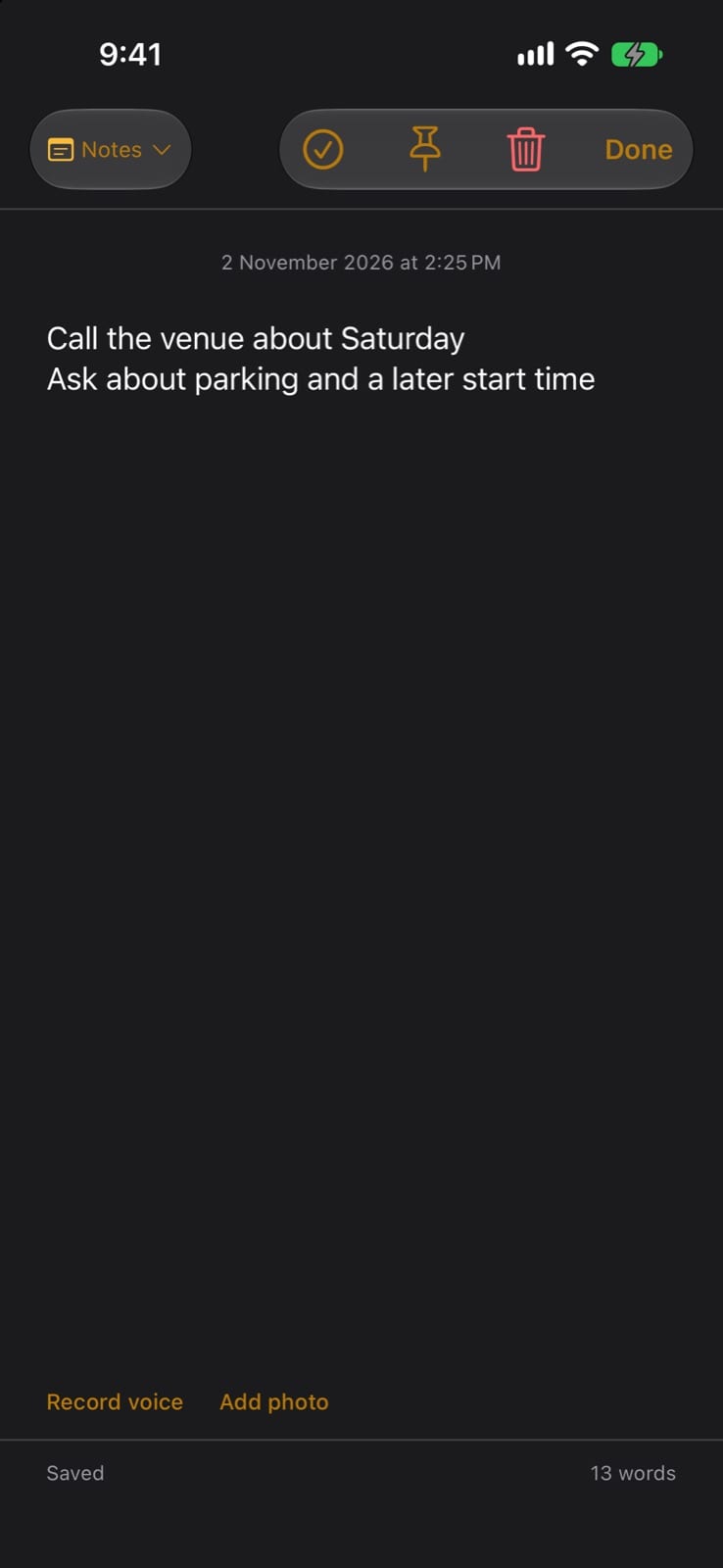
Press Command + Backslash (⌘\) in any app to open Catch from the menu bar. Escape or ⌘Return saves and hides it, and notes also save while you type.
Folders with icons
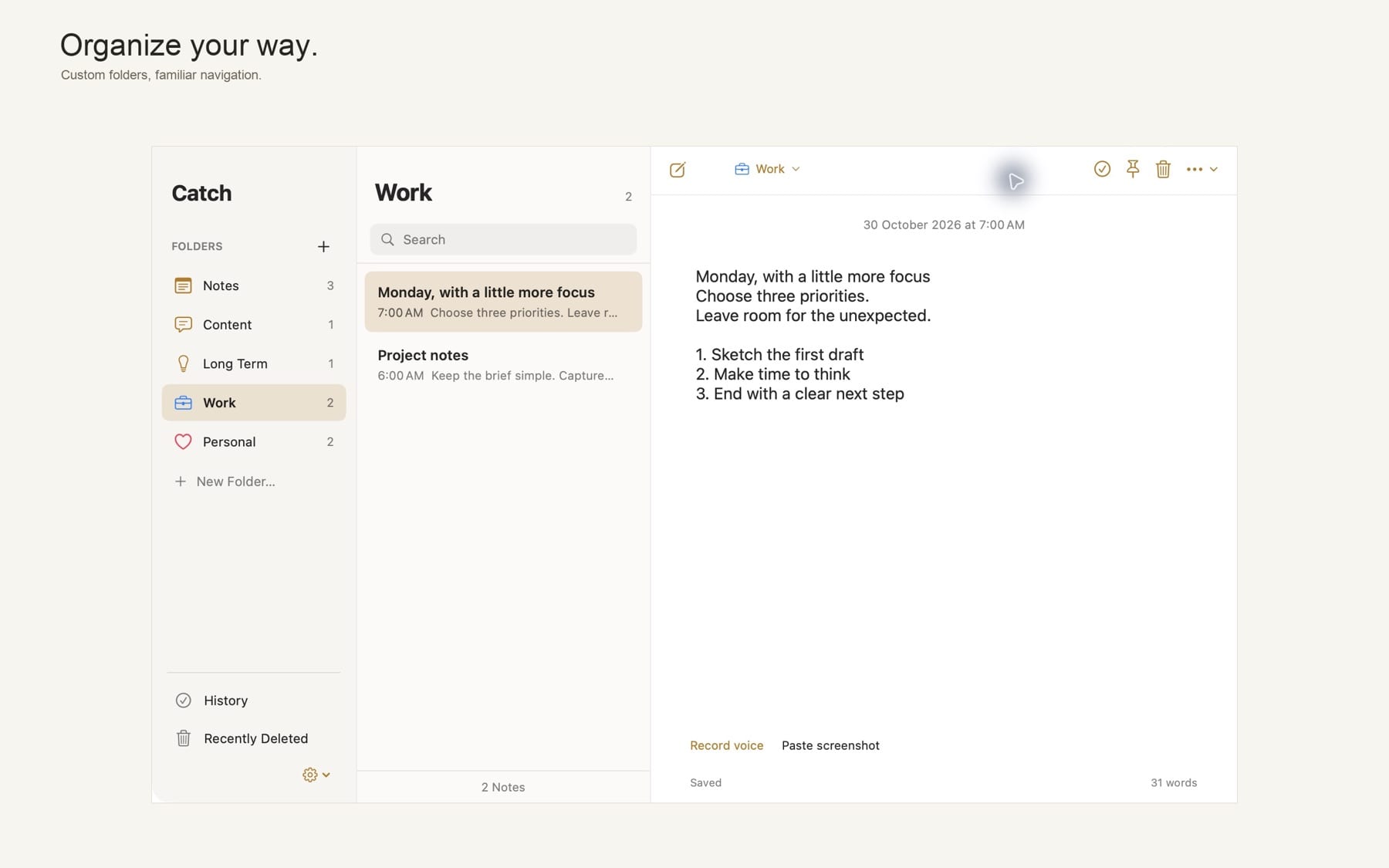
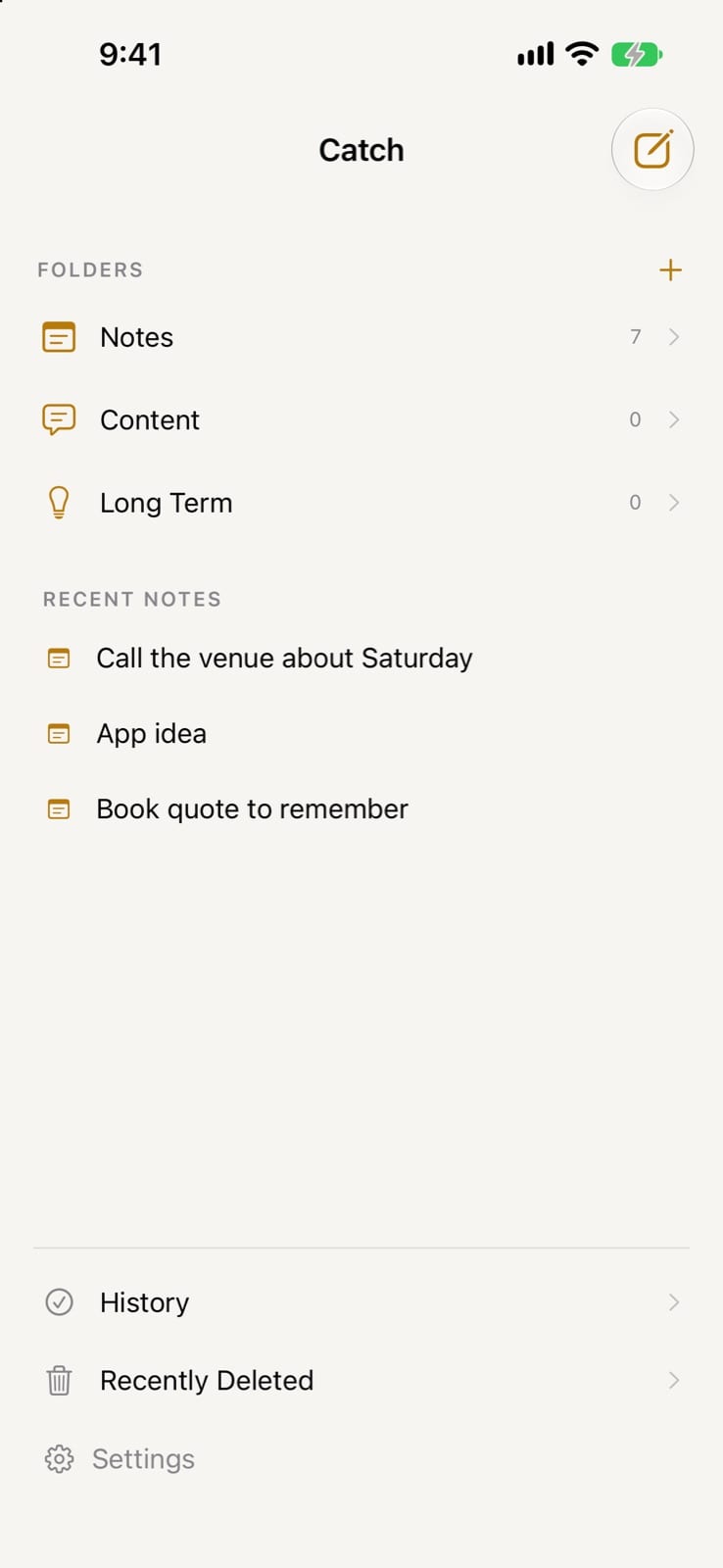
Keep notes in Notes, Content, Long Term, or folders you create. Give each folder an icon and accent color, and pin the notes that matter.
Voice notes
Record an optional voice note when typing is too slow. Recordings are saved as .m4a files with the note they belong to.
Screenshots and photos
Paste a screenshot or clipboard image into a note on Mac, or add a photo on iPhone. Images stay attached to the note.
Export in open formats
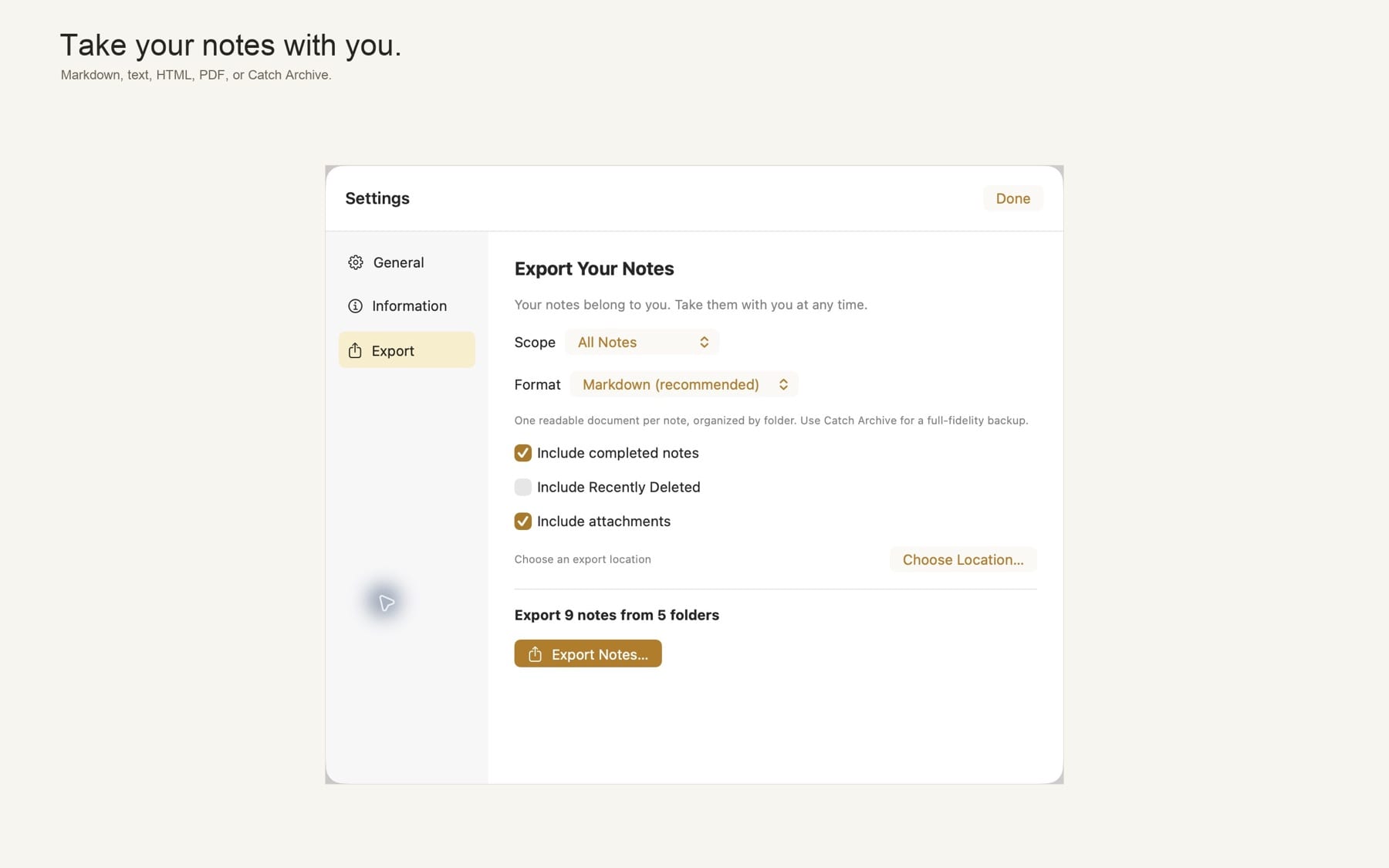
On Mac, export to Markdown, plain text, HTML, PDF, or a Catch Archive ZIP with original media and SHA-256 checksums. On iPhone, export a ZIP of Markdown files with attachments.
History and Recently Deleted
Mark a note done to move it to History, and reopen it any time. Deleted notes go to Recently Deleted, where you can restore them.
New Note widget
On iPhone, add the New Note widget to your Home Screen or Lock Screen to open straight into a fresh note.
No account, no cloud
Catch has no sign-in, sync, analytics, advertising, or tracking. Its App Store privacy label is Data Not Collected.
How it works
From thought to saved in a few seconds
Press ⌘\
Catch opens from the menu bar over whatever you are doing. On iPhone, tap the New Note widget.
Write it down
Type the thought, paste a screenshot, or record a short voice note.
Press Escape
Catch saves the note and hides, so you are back where you were.
Sort it later
Move notes into folders, pin them, mark them done, or export them when you want a copy.
Why Catch
Built differently
Opens to a blank note, not a library
Full notes apps open to lists and pages to navigate. Catch opens to the editor with one shortcut and hides again on Escape, so capture does not become a detour.
Text, voice, and images in one note
Many quick-capture scratchpads are text only. A Catch note can hold your writing, a voice recording, and screenshots together.
Local files instead of a sync account
Capture apps often depend on a cloud account. Catch has no network features at all, and you take your notes out in formats like Markdown and PDF whenever you choose.
What do I need to run Catch?
A Mac with macOS 14 or later, or an iPhone with iOS 17 or later. The iPhone version is built for iPhone and includes Home Screen and Lock Screen widgets.
When can I get it, and what does it cost?
Catch for Mac and iPhone has been submitted to the App Store and is waiting for review. It was submitted as a free app with no subscriptions or in-app purchases. A download link will appear here once it is approved and released.
Do my notes sync between Mac and iPhone?
No. Catch has no cloud sync. Each device keeps its own library, and the Mac and iPhone versions are the same App Store app.
Does Catch send my notes anywhere?
No. Notes, recordings, and images are stored on your device. There is no account, analytics, advertising, or tracking. Microphone access is requested only when you choose to record a voice note.
Can I get my notes out?
Yes. On Mac, export all notes, selected folders, or one note to Markdown, plain text, HTML, PDF, or a Catch Archive. On iPhone, export a ZIP of Markdown files with attachments. Restoring from a Catch Archive is not available yet.
The shortcut types a different key on my keyboard. Why?
The default shortcut uses the physical ANSI backslash key, which other keyboard layouts may label differently. You can record a different shortcut, or turn it off, in Settings → General.
Catch is on its way
Submitted to Apple and waiting for App Review. This page will link to the App Store as soon as it’s approved.
More from Parth
 Closer
 LoopStudio
 Palmdeck
 GesturePad