
Watch on one monitor. Keep working on the others.
Mac Video Fullscreen is a Chrome extension that expands a video into a maximized window instead of native macOS fullscreen. Your other monitors stay available, even with “Displays have separate Spaces” turned off.
- Chrome
Free on the Chrome Web Store · Chrome 102 or later on macOS
Why it exists
Fullscreen video can black out your other monitors
Say you want a lecture on your second display while you take notes on the main one. If “Displays have separate Spaces” is off on your Mac, clicking fullscreen can leave the other monitors black and unusable. Turning that setting on changes how your whole desktop behaves. Mac Video Fullscreen avoids the fullscreen transition instead.
Features
What Mac Video Fullscreen does
Windowed fullscreen
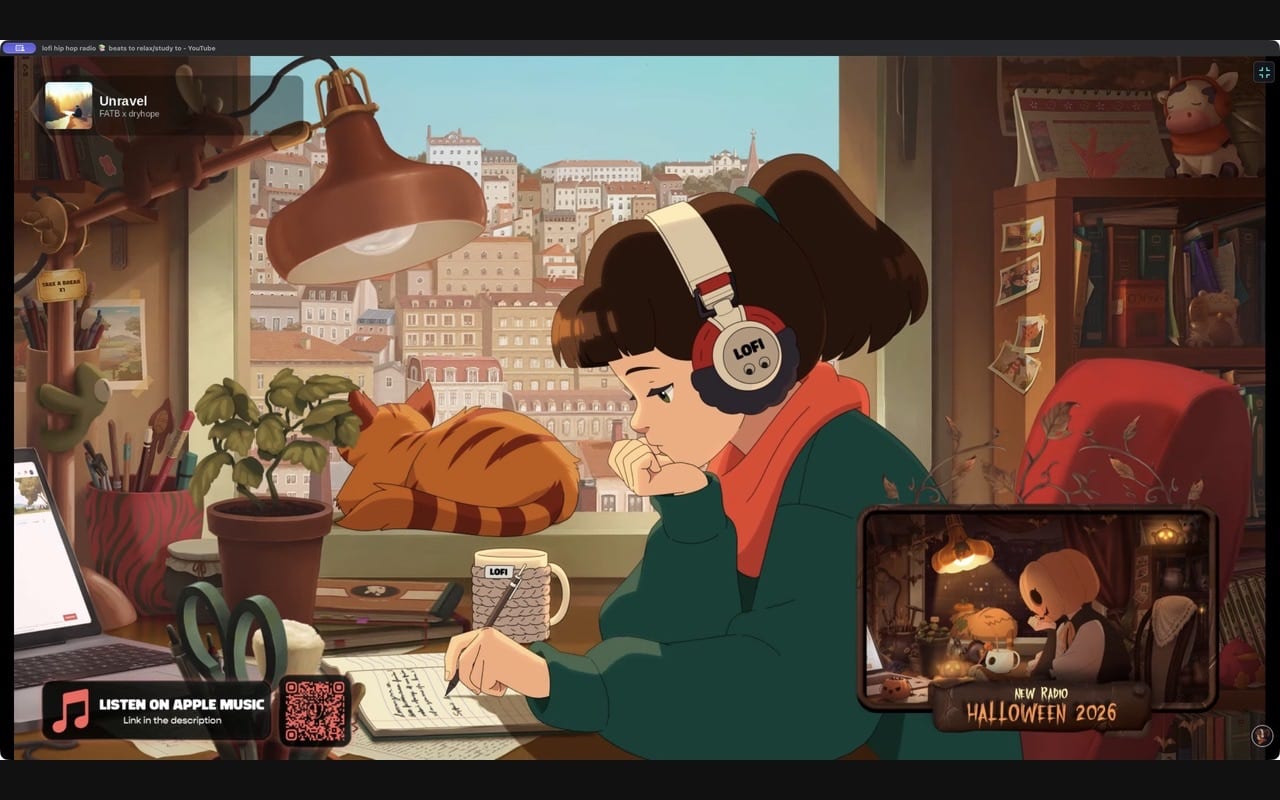
Moves the video tab into a maximized Chrome window, hides the tabs and address bar, and expands the original player. A thin title bar remains.
No new Space
It never requests native macOS fullscreen or creates a separate Space, so your Mission Control settings stay as they are.
YouTube and Netflix built in
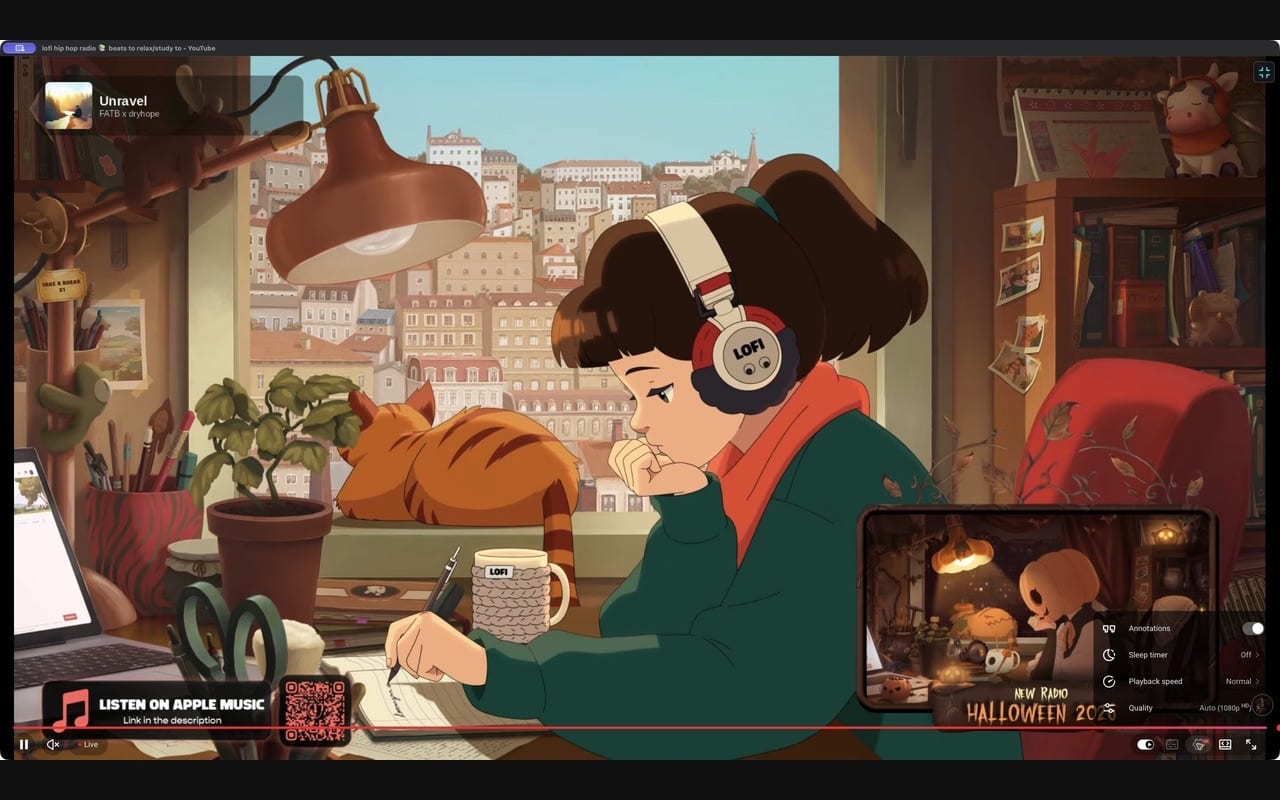
A cyan corner button appears automatically on YouTube and Netflix. The site's own playback, subtitle and player controls keep working.
Other video sites
On other sites, start playback and activate the extension from Chrome's Extensions menu. It looks for a visible HTML5 video or an eligible fullscreen-capable embed.
Return the same tab
Press Escape or click the corner button to put the tab back in its original window and position. If a return fails, try again with the same control.
Keyboard shortcuts
Toggle with Command-Shift-9, or set your own at chrome://extensions/shortcuts. While expanded, Up and Down change volume, M mutes, and Shift-Period or Shift-Comma change speed.
Controls in your language
The extension's own controls follow Chrome's display language, including Japanese, German, Italian, French and Spanish, with right-to-left layout for Arabic and Urdu.
How it works
Three steps to a second-screen video
Pick your display
Move the Chrome window to the monitor you want to watch on.
Start the video
Play a video on YouTube, Netflix or another supported site.
Expand it
Click the cyan corner button, the toolbar icon, or press Command-Shift-9. Press Escape when you are done.
Why Mac Video Fullscreen
Built differently
Keeps the original player
Some tools pop video out into a separate floating player. This extension keeps the site's own video element in place, so playback, subtitles and protected streams carry on as normal.
Made for multi-monitor Macs
Many windowed-fullscreen tools only fill the browser window. This one moves the tab into its own maximized window on the display you choose, aimed at Macs with separate Spaces turned off.
Narrow, local permissions
Automatic access covers only YouTube and Netflix. Other sites get temporary access only when you activate it, with no analytics or data sent anywhere.
What do I need?
Chrome 102 or later. The extension is built and tested primarily for Chrome on macOS. Windows and Linux have default shortcuts, but verification focuses on macOS.
Is it free?
Yes. Mac Video Fullscreen is free on the Chrome Web Store.
Does it split my screen or play two videos?
No. It expands one existing video tab into its own window. Arrange your other windows yourself. It does not add picture-in-picture or always-on-top controls.
Why does the green fullscreen button still black out my monitors?
The green button and the site's fullscreen button still use native macOS fullscreen. Use the extension's corner button, toolbar icon or shortcut for windowed viewing.
Does it work on every streaming site?
Not every one. Standard HTML5 videos and eligible embeds often work, but closed or custom players may not. It does not bypass DRM, logins or subscriptions.
Does it collect data?
No. There are no analytics, ads or data sent to the developer. It keeps only the tab ID, original window ID and tab position in Chrome session storage so it can return your tab.
Get Mac Video Fullscreen
Watch video full-window on one Mac monitor while your other displays stay usable.
More from Parth
 Closer
 Transcription
 BestNotch
 Tablet Awake